Showing posts with label Adobe Ideas. Show all posts

Wednesday, September 17, 2014

Designing Pattern Collections

I have pulled myself out of my funk after Lilla Roger's Global Talent Search and I'm filled with creative energy. I found the most amazing course on Creativelive.com called Design Surface Patterns From Scratch with Bonnie Christine. Bonnie reveals all her secrets showing step by step how she creates her designs. She uses Adobe Illustrator (Ai) and I have struggled with this program. It can do hundreds of things but I don't need to know everything it does. I only need to know how to use the program to make surface pattern designs. This is the first course I have found that shows you the creative process using Illustrator for Surface Pattern Design from beginning to end. It has great video instruction, lots of info and Bonnie Christine in an inspiring instructor.

Much of her beginning process is what I learned in Make Art That Sells; find inspiration and sketch, sketch sketch. The big eye opener for me was how to transfer my sketches into Illustrator and maintain my hand drawn look. I don't like the perfect shapes you often see in vector drawing so it's very important to me to maintain my style and personality in my drawings. Bonnie uses Image Trace, the Blob Brush, the Pen Tool and the Pencil Tool in various ways to bring her drawings into Ai. I love the Blob Brush so I had a blast using my Wacom Tablet and bringing my sketches into a vector format. My other best friend became the Smooth Tool (which is in the fly out menu of the Pencil Tool). You can use this tool to smooth out your lines if they're a little wonky. It also works well with drawings brought in with Image Trace to help smooth out lines and reduce anchor points.
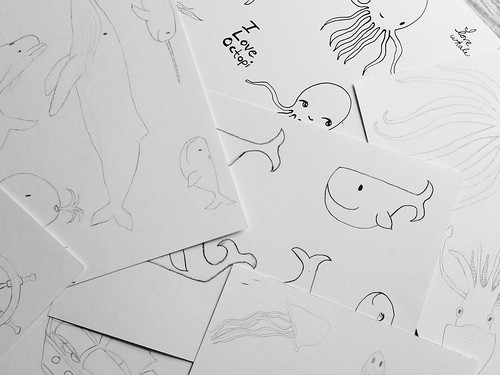
I went through my sketches for the nautical assignment from Make Art That Sells Bootcamp and started my first collection.
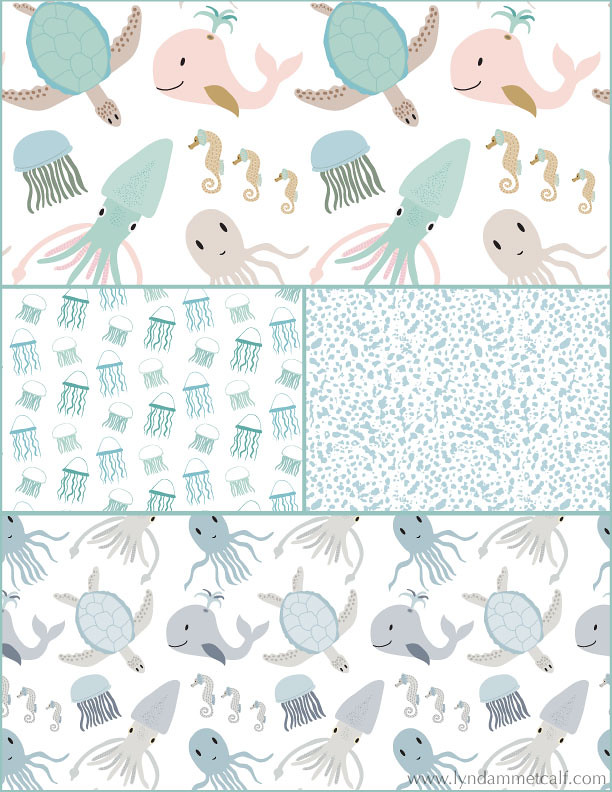
My main print is the sea creature print which I've done in a girl themed colorway and a boy themed colorway. I created a supporting jellyfish print and the abstract dot print is actually a piece of coral I photographed and Image Traced it to change it to vector. Using photography for vector drawing was something I hadn't tried before and it's so cool!

One thing Bonnie doesn't use often is the Pattern Tool new to Illustrator in version CS6. I'm going to try and see if I can conquer it. I used the Pattern Tool to make the above patterns. I think some artists don't like it because it's easy to see where the pattern begins and ends. As long as you keep moving items around you can create a very interesting pattern. I'm also doing a course from Laura Coyle that talks all about using the Pattern Tool called Pattern Power. It's very thorough and it's free when you sign up for her newsletter. You need to have knowledge of Ai though for Laura's course. If you or a real beginner it will be overwhelming.

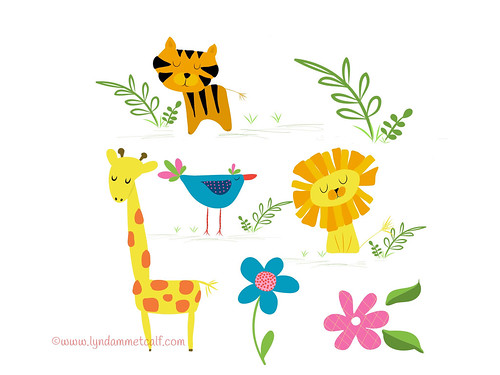
What I can't wait to dig into is putting the sketches I've made in Adobe Ideas into Ai. Adobe Ideas is a vector app that works with Illustrator. You can upload your files straight into Ai from Ideas as long as you have a Creative Cloud account and wifi. Check out these cute critters I made! The only downside is you have to clean up a lot of stray anchor points when you bring it into Illustrator.
If you are interested in creating patterns from your art I highly recommend Bonnie Christine's course. The beginner and the professional alike will find this course helpful and inspiring. If you are new to Creativelive.com they often send out a coupon (I got one) to purchase past classes. Bonnie's course is around $80 and so worth the money. Other courses I've had my eye cost $100's more and this one has everything you need to get going. Below I will provide links to all the things I've mentioned.
 
 
I hope you find all this info helpful. Thanks so much for stopping by!


Thursday, June 5, 2014

Art Techniques...Experimenting with Eyes

I enjoy playing around in Adobe Ideas on my iPad because you can work in layers. Layers can be turned on and off so I can play with how a character looks. For the bunny I created below I decided to play with his eyes. Changing something as simple as eyes can greatly influence how your character looks. You can do this drawing exercise on your tablet too if you have a layer based art program. Or you can also use a pencil and eraser and take pictures of your character with the different eyes you create, then choose the version you like best.

Big oval dot eyes

Little dot eyes placed high

Little dot eyes placed low


Peppa Pig cartoon eyes

People like eyes

Add eyelids


Eyes looking off to the side


Add a tilt of his head (this one is my favorite)

Same bunny but the eyes were changed or repositioned to create different looks and personality. This is a fun exercise to do when you are blocked and don't know what to draw. Just play around and change up the eyes, ears, nose or whatever you want with your character.


Thanks for stopping by!


Thursday, May 29, 2014

Changing Direction

For the past month I've been in a funk. I haven't wanted to do art or blogging (obviously). A lot has been going on since the end of April but that's not the only reason I've been absent. I haven't been into making the art I usually make. It's not that I don't like the art I've made. I do. I love the characters, colors and texture but I want to do something else.... Something more.


An iPad doodle in Adobe Ideas

When I took Make Art That Sells last year it opened up all these other opportunities for my art. I used to think making art was about going to craft shows and opening an online store. But now it's about so much more. I can create art that can go on things like wrapping paper, clothes and bedding. That just amazes me. I have found that making art for licensing is completely different than making it for my shop. In my opinion it's about simplicity and icons. You can combine and layer the icons to make things more complex but the pieces themselves are simple. I really like the idea of having lots of simple pieces and then putting them all together to make something completely new. Learning how to combine these things has been my biggest challenge.

A page of marks I did in my sketchbook. All these marks were fun to create and they can be taken further in computer programs like Illustrator and Photoshop.

I post my sketches, doodles and iPad art to Instagram and I get a lot of likes. The majority of the art posted to Instagram is simple. Seeing this positive feedback has made me take a hard look at what I create and how I create. I've decided I'm going to buckle down this August when both my kids are in school and create art for licensing. I'd love, love, love to go to Surtex next May and I would need a boatload of art to do this. I'm going to embrace simplicity of form. I'm going to master (or be super comfortable with) Illustrator and Photoshop. I'm going to get collections under my belt. I won't completely abandon the art making I've made in the past. It's fun to get messy with paint. It's just not going to be a priority. My Etsy shop will still exist it will have simpler art added to the mix. My Society6 shop will hopefully bulk up too. It's so fun seeing my art on things!

This cutie got a lot of likes on my Instagram. He's pastel and watercolor. He's so adorable!

I intend on sharing my process and what I learn on this journey. Change and growth is good.

Thanks for stopping by!


Saturday, April 19, 2014

Happy Easter

Wishing everyone a Happy Easter and (hopefully) a sunny spring weekend!

Thanks for stopping by!


Tuesday, April 15, 2014

Inspired by Make Art That Sells

Lilla Rogers is running Make Art That Sells parts A & B again. I am not participating but if you google "make art that sells" or type #makeartthatsells into Instagram you can see the lovely art being made. I follow Zoe Ingram's blog (she won Lilla's Global Talent Search last year) and she created the cutest pirate themed baby clothing. I was so inspired I pulled out my iPad and opened Adobe Ideas and created these guys.


These are just sketches but I can see them turning into something more in Illustrator. I'm really getting the hang of making these characters on the iPad. It really helps with my work flow. It's also very fun!

Thanks for stopping by!


Monday, April 7, 2014

Some Art Days are Good and Some are Not

I've been playing around with different media and different techniques. Some things are successful and some, not so much. Here are some things from my studio.

Cutie IPad Art

First Go At Coloring in Photoshop


This will become something cause it's too adorable not too.


Love the next three faces so much!


Has potential, maybe...


And in my attempt to be primitive I created this mediocre one


A reject from Braveheart


No! No! No! Put those oil pastels down right now and walk away. It'll be best for everyone.


Some days I create things I am over the moon about. Other days I create well, crap. But that is ok. Every mark I make teaches me something, even if it's never to pick up an oil pastel again (at least not this week). I believe all artists go through this; musicians, novelists, chefs, painters, all creative types. Every artistic individual you love has at one time created something that will never see the light of day. But if you don't make the bad you will never learn how to make the good. So, make something bad and be proud. (You may choose to hide it forever or post it on your blog like me)


Thanks for stopping bye!


Friday, March 28, 2014

Adobe Ideas Overview

I have been obsessed with Adobe Ideas on iPad. It is a simple vector based sketchbook app. Because it's a vector app you can enlarge or shrink your art to any size without losing quality. Here is a quick overview of the art section of the app.

(the move tool is under the hand tool)

Your color themes in Adobe Kuler will upload into Adobe Ideas through Creative Cloud.

What I usually do is take a picture of my art from my sketchbook, put it on the photo layer and then trace over it. You can adjust the opacity of the individual layers so I tend to make the photo layer lighter. Then I start creating shapes. As long as the shape is closed I can fill it with color.

You can have up to 10 layers and upload the drawing through Creative Cloud into Illustrator; layers and all. You can edit and tweak your creation in Ai. I have discovered some annoyances though. If you have a transparent layer you can't make it opaque and lines are a pain adjust. I'm still learning Ai but I believe the the lines you make with Ideas behave like the Blob Brush in Ai. There are lots of anchor points on the line so manipulating them is difficult. The eraser tool works pretty well on the lines though.


I will figure this out as I usually have my iPad in hand so sketching on the iPad can be really helpful with my workflow. Making icons on the iPad is fun and I'm getting better with my Bamboo Stylus for iPad. I will likely never master using my finger to draw. I also have a Sensu paintbrush which is made for painting on a tablet. That's fun to use too.

Here are some other things I've created.


Thanks for stopping by.


Monday, March 24, 2014

Make Art That Sells Bootcamp March Project

For my birthday I asked for MATS Bootcamp. This is a six month course of professional licensing assignments from Lilla Rogers. It's a great way to build my portfolio and challenge myself. Our March assignment was Jello molds. For some reason I immediately thought of a turtle with a Jello shaped shell. I don't know why but that's what I wanted to do. I also decided I was going to do it all in Adobe Illustrator. I researched and did sketches on my iPad with Adobe Ideas. I came up with this guy.
Then I created these other icons with my iPad and in Illustrator. I admit editing lines made in Adobe Ideas is a total pain. Editing big blobs of color is easier. So, I deleted my line work from Adobe Ideas and did them over in Illustrator. I have a basic Wacom Tablet and it was much easier to use since I've been playing on my IPad.
Lilla Rogers suggested a pastel palette which is totally opposit of what I normally do. I decided to stretch myself and give it a go. I created a pattern and used Illustrator's new Pattern Maker to create a repeat. This was my final submission.
I already have ideas for coordinates. I'm not sure if I'll keep this color palette. I really like the cute turtle I did on my iPad. He's so bright and colorful. Playing around in Illustrator was more fun than I thought it would be. I created layers to help create depth, which is similar to how I paint. Work on the computer can look very flat so the layers helped a lot. I'm sure the more I play around the more I will figure out. Bootcampers are off for the month of April. Make Art That Sells parts A & B are running again. I highly recommend the courses if you are serious about making a living with your art.

Thanks for stopping by!